.png?width=250&height=138&name=image%20(1).png)
Question: How can a user generate an Insurance Aging Report in Prognocis?
Answer:
To generate an Insurance Aging Report, please follow the steps below:
Step 1: Navigate to the Billing side of Prognocis.
Step 2: Click on the “Reports” tab.
Step 3: Select the “Aging” option.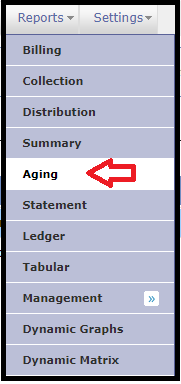
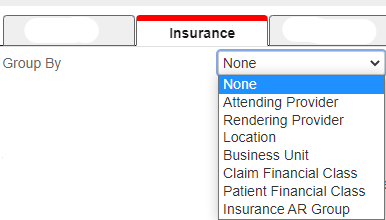
Step 4: Click on the “Insurance” tab.
Step 5: From the Group By drop-down menu, select one of the following options based on your requirement:
-
None
-
Attending Provider
-
Rendering Provider
-
Location
-
Business Unit
-
Claim Financial Class
-
Patient Financial Class
-
Insurance AR Group
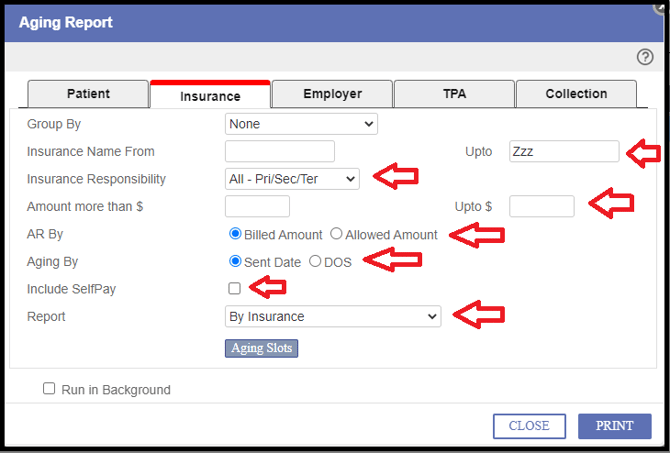
Step 6: Select "Insurance Name From" From & upto A to Z >>
Step 7: Select "Insurance Responsibility":
-
All (Primary / Secondary / Tertiary)
Step 8: Select Amount more than & Upto $ >>
Step 9: Select AR By: Billed Amount / Allowed Amount (Select one of the options)>>
Step 10: Select Aging By: Sent Date / DOS >>
Step 11: Select the Checkbox of "Include Selfpay" >>
Step 12: Select Reports Type:
-
By Insurance
-
By Insurance with Percentage
-
By Insurance by Claim
-
By Insurance by Claim by Charge
-
By Group Total Only
Step 13: Select Aging Slot:
-
0–30
-
31–60
-
61–90
-
91–120
-
120+
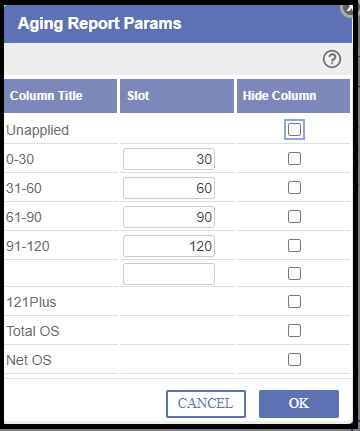
Step 14: Click On "Ok".